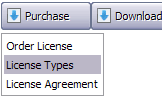
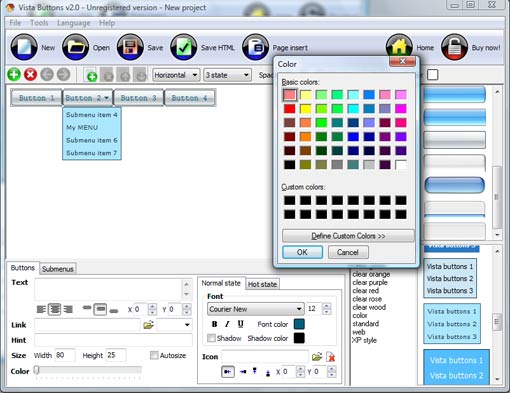
Click "Add button" and "Add submenu's item's buttons to create your menu.
You can use ready to use Templates. To do it just select theme you like in the "Button themes" and "Submenu themes" list. Then you can browse this theme's button backgrounds. When you find a button background or submenu theme you like, double-click it to apply.
Select vista button or submenu by clicking it and change button appearance for normal and mouse over states and set buttons/submenus link properties and link target attributes.
Save your menu as project file, as HTML page or insert your menu into the existing HTML page
JS DROP DOWN MENU
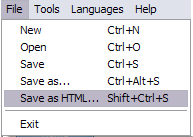
1) File menu
New - to create new project.
Open - to open saved project. You will be asked if you would like to save the current project in the menu buttons creator.
Save - to save current project in the project file (*.xwb). When you save to project file, the directory "ProjectName.xwb.icons" is created, where ProjectName is the name of your project file. This directory contains button icons, .css and .js files of the saved menu.
Save as� - to save current project in the project file (*.xwb) or in the HTML file or to save your project under another name. Choose type from the "File type" list in the "Save as�" dialog and enter project's (new) name. When you save to project file, the directory "ProjectName.xwb.icons" is created, where ProjectName is the name of your project file. This directory contains button icons, .css and .js files of the saved menu. If the menu doesn't have any icons then the directory is not created.
Save as HTML - to save current project into the HTML file (*.html). Project HTML file will be saved then, and the directory created, containing buttons' images. The directory name will be: "YourProjectName-files", where YourProjectName is the name of the HTML file saved. For example: if you enter "Header" in the "Name" field of the "Save as�" dialog, then "Header.html" and directory named "Header-files" will be created.
Exit - to close Vista buttons application.
2) Tools
Export images - to save menu buttons' images as gif-files (*.gif), png-files (*.png) or jpg-files (*.jpg). "Save As�" dialog will appear, where you can either type each button name or leave it unchanged. If you want to save the button images, press "Save". "Save settings" dialog will appear where you can choose image format. Either way (if you don't want the button images to be saved), press "Cancel". This procedure will be repeated for all the menu buttons. When you press "Save", 1 to 3 images are to be saved, depending on the menu type. Their names will be: ButtonName_0.gif - ButtonName_2.gif, where ButtonName is the name you have entered when saving.
ButtonName_0 - corresponds to Normal state.
ButtonName_1 - Hot state image.
ButtonName_2 - corresponds to pressed/clicked state.
Theme editor - to edit/create new themes.
Page insert - you can insert your menu into the existing HTML page.
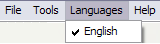
3) Languages menu
The "Languages" menu contains the list of available interface languages. English is the default language setting.
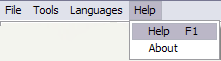
4) Help menu
Help - to read the help.
About -show information about Vista Buttons.
DESCRIPTION
Good navigation system is an important part of web site success. If people can't find their way around the site, they will rapidly give up looking and go, never to return. So, it's very significant that your website has a neat, fast, and gratifying to the eye navigation. Don't permit your web site visitors to get lost. Try JavaScript Drop Down Menu!
Total control of all menu parameters
Each parameter of a html buttons may be easily changed, allowing you to achieve the required result.
You can set such parameters as direction, size, color, font face, font style, shadow, icons, alignment, links, targets, tooltips, word wrap, and other parameters.
Any change can be undone by pressing "Undo" button.
Css Menu Wie Office
Extended capabilities to save and export the results
Everything you create with the program, has been saved in the Project File. This allows you either to continue your work at any time, or share your ideas with friends and colleagues.
You can also save your menu as a HTML page, or export it as separate graphic images.
Efectos De Texto En Html Tabulaciones
Create A Right Click Menu By Javascript Js Drop Down Menu
High Quality and Professional Results
You don�t have to know HTML, JavaScript, CSS or any other coding languages to make multi-state rollover web buttons, professional cross-browser, search engine friendly DHTML menus.
Vista Web Buttons will generate all necessary images, html, javascripts, css styles automatically!
Creating a FrontPage Drop-DownMenu with JavaScript Copy and paste the JavaScript code shown in Listing 16 (Complete JavaScript for Drop-DownMenus), replacing the code in the page. Save the file as menu.js in the same
DropDownMenuJs Center I think I followed the instructions on FAQ to center my dropdownmenujs but it still won't center.
Son of Suckerfish Dropdowns | HTML Dog We obviously need to hide the lists that we want to 'dropdown' but to make things as Following the same logic you can accommodate as many levels of dropdown menus as
Anylink JSDropDownMenu | JavaScriptMenus Anylink JSDropDownMenu. JavaScriptMenus from Hot Scripts. This is an extremely versatile dropdownmenu script for ordinary links on your page, including image links.
Anylink JSDropDownMenu | JavaScriptMenus Anylink JSDropDownMenu. JavaScriptMenus from Hot Scripts. This is an extremely versatile dropdownmenu script for ordinary links on your page, including image links.
Dreamweaver Drop-downmenu problem I strongly suspect that your mm_menu.js file in the the wrong directory. If you create the page using Dreamweaver and create the dropdown behaviours using Dreamweaver
SimplytheBest DHTML horizontal dropdown menu script 3) Download this ZIP file with the custom.js, menu.js, menu_ie4.js, menu_ie5.js, menu var shCOLOR = "# BCBCBC"; // menudrop shadow color var shOPACITY = 75; // menudrop
DropDownMenuJs Center I think I followed the instructions on FAQ to center my dropdownmenujs but it still won't center.
Menu.js by Charming Design Menu.js is a free, small JavaScript (drop-down) menu for developers. It's unobtrusive and only requires a HTML unordered list and your own CSS styles.
HTML DropDownMenu Generator | ricocheting.com When and how to change the page Page changes when menu changes Use default text button. Use image button: Menu Properties Menu Name: (change menu name if multiple menus
SimplytheBest DHTML horizontal dropdown menu script 2) Download this ZIP file with the menu_array.js and the mmenu.js files and unzip them into 0, // Follow scrolling - tells the menu item to follow the user down the screen
DropDownMenuJs Works Cross Frame I do not see any samples of the code and pages necessary for the dropdownmenujs works in a cross frame..
Creating a FrontPage Drop-DownMenu with JavaScript Copy and paste the JavaScript code shown in Listing 16 (Complete JavaScript for Drop-DownMenus), replacing the code in the page. Save the file as menu.js in the same
SearchBliss - JavascriptDropDownMenus Webmaster tools include this code generator for creating dropdownmenus for JSDrop-DownMenus; Advanced Menu Bars; Menu Bars; Menu Trees; Site Map Generator
DropDownMenuJs Works Cross Frame I do not see any samples of the code and pages necessary for the dropdownmenujs works in a cross frame..
SimplytheBest DHTML horizontal dropdown menu script 2) Download this ZIP file with the menu_array.js and the mmenu.js files and unzip them into 0, // Follow scrolling - tells the menu item to follow the user down the screen