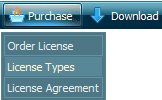
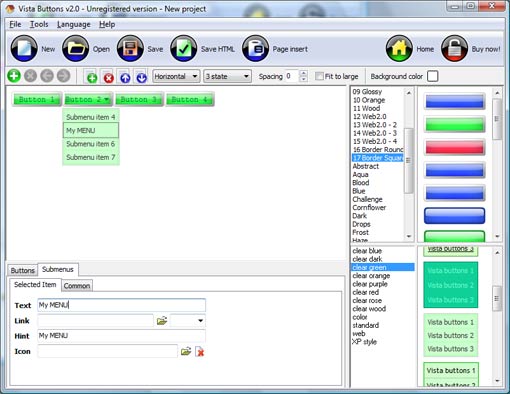
Click "Add button" and "Add submenu's item's buttons to create your menu.
Create your own buttons or use ready to use Templates.
Select vista button or submenu by clicking it and change button appearance for normal and mouse over states and set buttons/submenus link properties and link target attributes.
Save your menu as project file, as HTML page or insert your menu into the existing HTML page
DROP MENU JAVASCRIPT
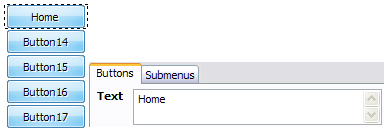
Let's assign text to the web menu buttons. Select first web button by clicking it and then enter text in the "Text" field on the Properties toolbox. You will see that, as you enter the text, the selected button's text will change too.
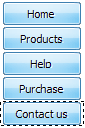
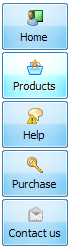
Then select next web button with click. Enter its text and so on. After finishing, the menu will look like this:
Now let's add some icons. Select button and then click the "Open icon" button on the "Normal state" tab of the Properties toolbox.
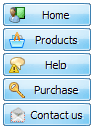
"Open" dialog will appear, where you can choose an icon. Other way to assign an icon is to type its full path and name in the "Icon" field ("c:\myicons\stylish_3\pretty.ico", for example). Repeat this for each menu button. You should get something like this in result:
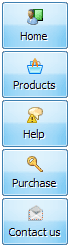
Let's change icons' position inside the buttons. To do it you should select all buttons by clicking on the first button, then pressing the Shift key, and then clicking the last web button while still holding the Shift key. You can also press "Ctrl + A" to select all buttons. Then click one of the "Icon Align" buttons on the "Normal State" tab on the Properties toolbox.
You will see that icons are aligned in the selected way now. In this example we choose Top icon align.
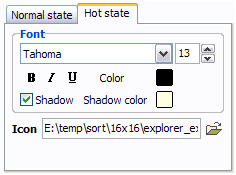
Now let's add text shadow to buttons when button in hot state. Select all buttons as described in the previous step and then set the "Shadow" checkbox on the "Hot state" tab of the Properties toolbox.
Now, when you point mouse at the menu button, shadow will appear under the button text like in the "Products" button of the following example:
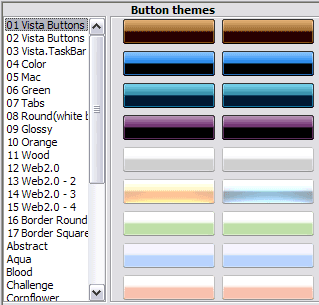
Let's change the menu theme. To do it just select theme you like in the themes list on the buttons editor toolbox. Then you can browse this theme's button backgrounds. Note, that button backgrounds are previewable. You can look at their behavior while choosing. Just point mouse at it, click it to know how web button will react.
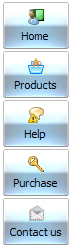
When you find a button background you like, double-click it to apply. For example, after choosing one of the "01 Vista Buttons" theme's backgrounds, we'll get following results:
DESCRIPTION
Submenus drop down over all the objects of the page (select, flash, object, embed).
You don't have to know HTML, JavaScript, CSS or any other coding languages. Vista Web Buttons will generate all necessary images, html, javascripts, css styles automatically!
Not a string of code!
You will not need any skills in javascript and html with Drop Down JavaScript Menu. All programming will be completed for you.
There even will be no necessity to edit your html code to insert a completed button-menu. Just point out the place on your page, where you want the buttons to be, and then press "Insert".
Css Side Menu Vertical Expanding
Instant preview
Each change of button-menu appearance is instantly displayed in the Preview Window.
At the same time, you will be able to test how the buttons would respond to the mouse events.
Disable Pop Up
Css Nav Drop Down Drop Menu Javascript
Extended capabilities to save and export the results
Everything you create with the program, has been saved in the Project File. This allows you either to continue your work at any time, or share your ideas with friends and colleagues.
You can also save your menu as a HTML page, or export it as separate graphic images.
Drop Down Menu This script generates a drop down menu at the top of your pages for site navigation.
Javascript Cascading Drop-down Menu | JavaScriptMenusJavascript Cascading Drop-down Menu. JavaScriptMenus from Hot Scripts. This is a tutorial which creates a simple cross-browser drop-down menu system in JavaScript.
Javascript Cascading Drop-down Menu | JavaScriptMenusJavascript Cascading Drop-down Menu. JavaScriptMenus from Hot Scripts. This is a tutorial which creates a simple cross-browser drop-down menu system in JavaScript.
Active DHTML Drop Down Menu in JavaScript With this cross browser Drop Down Menu you will be quickly adding a great drop down menu navigation aid to web sites, documentation, intranets and much more.
Javascript Cascading Drop-down Menu | JavaScriptMenusJavascript Cascading Drop-down Menu. JavaScriptMenus from Hot Scripts. This is a tutorial which creates a simple cross-browser drop-down menu system in JavaScript.
How to Make a DropMenu How to create a drop-menu using simple JavaScript. To create a drop-menu, copy the code below into your HTML page. Change the options to your own URLs.
Javascript Cascading Drop-down Menu | JavaScriptMenusJavascript Cascading Drop-down Menu. JavaScriptMenus from Hot Scripts. This is a tutorial which creates a simple cross-browser drop-down menu system in JavaScript.
Dynamic Drive DHTML Scripts- AnyLink Drop Down Menu With all of your anchor links and drop down menus defined using the <script type="text/javascript"> //anylinkcssmenu.init("menu_anchors_class") //Pass in the CSS class
Javascript Cascading Drop-down Menu | JavaScriptMenusJavascript Cascading Drop-down Menu. JavaScriptMenus from Hot Scripts. This is a tutorial which creates a simple cross-browser drop-down menu system in JavaScript.
JavaScriptDrop-down MenusJavaScript can be used to make drop-down menusJavaScript is frequently used for drop-down menus, but they are usually badly implemented, and unusable if the user has
How to Make a DropMenu How to create a drop-menu using simple JavaScript. To create a drop-menu, copy the code below into your HTML page. Change the options to your own URLs.
Javascript Cascading Drop-down Menu | JavaScriptMenusJavascript Cascading Drop-down Menu. JavaScriptMenus from Hot Scripts. This is a tutorial which creates a simple cross-browser drop-down menu system in JavaScript.