QUICK HELP
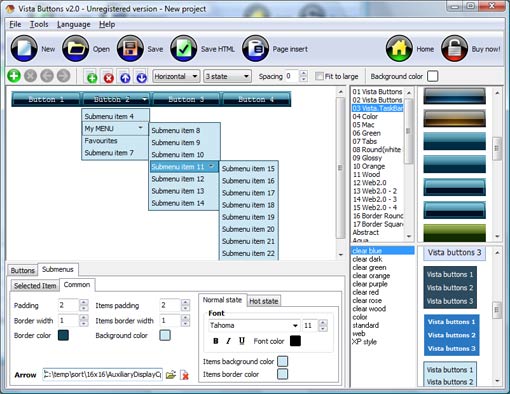
Click "Add button" and "Add submenu's item's buttons to create your menu. You can use ready to use Templates. To do it just select theme you like in the "Button themes" and "Submenu themes" list. Then you can browse this theme's button backgrounds. When you find a button background or submenu theme you like, double-click it to apply. Select vista button or submenu by clicking it and change button appearance for normal and mouse over states and set buttons/submenus link properties and link target attributes.Save your menu as project file, as HTML page or insert your menu into the existing HTML page
CREATING HTML BUTTONS
Press "Edit Properties..." button to edit button edges width. By default, when you add new button, its edges widths are set to 5. But if you will change preview button size to 100x50 or bigger, you will see that some image elements look "fuzzy" (left image on the picture below). It happened because the play buttons border is not within the edge area.
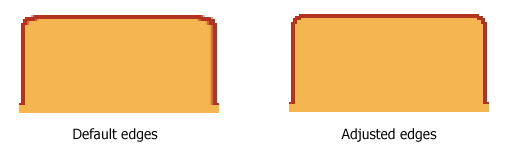
Set both horizontal and vertical edges width to 10. You can see that the result looks much more precise now. Border is not resized because it is within the edge area now (right image on the picture above).
Click "Save theme" button to save theme changes. Click "Close" button.
DESCRIPTION
Create 1-state, 2-state, 3-state and 3-state toggle buttons Use images for icons, backgrounds of submenus and items. Using images you can create menus entirely based on graphics. Create both horizontal and vertical menus and submenus with any amount of menus on one page. Insert any HTML code inside the menu item - be it a form or a picture, a flash-object or a text. This ability allows you to create various menus of any complexity.
| Seamless Integration |
- Visible over flash, select boxes, iframes, java applets
- Multiple menus on the same page
- Amicable to other scripts and css styles
- Any HTML code can be used inside menu items
|
Css Pop Up Menu Compatibility | High Quality and Professional Results |
- You don�t have to know HTML, JavaScript, CSS or any other coding languages to make multi-state rollover web buttons, professional cross-browser, search engine friendly DHTML menus.
- Vista Web Buttons will generate all necessary images, html, javascripts, css styles automatically!
|
Efectos Javascript Web| Display Menú Creating Html Buttons |
| Not a string of code! |
- You will not need any skills in javascript and html with Drop Down JavaScript Menu. All programming will be completed for you.
- There even will be no necessity to edit your html code to insert a completed button-menu. Just point out the place on your page, where you want the buttons to be, and then press "Insert".
|
RELATED
HTML BUTTON - HTML Code Tutorial With the TYPE attribute, <BUTTON > can also create submit and reset buttons. The HTML code put between <BUTTON > and </BUTTON> is not the value sent with the form.
How To Create Html Tab Buttons. Web Menu How To How To Create Html Tab Buttons. Make your website navigation clean and comfortable with Javascript Menu Builder! Iconos Gothic
HTML Forms and Input fieldset, legend, and label elements. The <form> tag is used to create an HTML form Form with radio buttons How to create a form with two radio buttons, and a submit button.
YouTube - Introduction to HTML Computer Code : Creating an Learn how to create a submit button in an HTML document and learn how to build your own website in this free computer programming video. Expert: Dorian Winter
Creating Paypal Buttons When you're done, click the "Create Button Now" option. You'll be brought to a page that has HTML code for your product button as well as code for a "View Cart
HTML BUTTON - HTML Code Tutorial TYPE = BUTTON. BUTTON defines a button which causes a script to run. Use the onClick attribute to give the script command(s). BUTTON is used only with scripting.
Free Web Buttons - create great web buttons and menus with ease! Free Web Buttons helps you create web buttons and menus with ease. Easy, quick Free HTML Buttons Screenshot | Free Navigation Buttons Download | Free Gif Buttons
How To Create Html Tab Buttons. Web Menu How To How To Create Html Tab Buttons. Make your website navigation clean and comfortable with Javascript Menu Builder! Iconos Gothic
Html Buttons, html, Graphic Buttons, Navigation Buttons; Button Button Maker: Html Buttons, Graphic Buttons, Navigation Buttons Crystal Button 2007 enables you to create unique Html Buttons, Graphic Buttons or
Create An HTML Rollover Button For Your Blogger / BlogSpot Blog Many bloggers like to place buttons instead of simple links. And in some widgets and posts, buttons do look a lot better than simple hyperlinks.
Free Web Button Maker - ButtonGenerator.com Free online button maker. Web Button Generator Create multipurpose web buttons for your website. >> Website Menu Generator
Creating new html image button Create superior html image button for your Website with Vista Buttons!
Free Web Button Maker - ButtonGenerator.com Free online button maker. Web Button Generator Create multipurpose web buttons for your website. >> Website Menu Generator
Html Buttons, html, Graphic Buttons, Navigation Buttons; Button Button Maker: Html Buttons, Graphic Buttons, Navigation Buttons Crystal Button 2007 enables you to create unique Html Buttons, Graphic Buttons or
Creating new html image button Create superior html image button for your Website with Vista Buttons!
The HTML Form Submit Button In order to create an HTML form submit button, you can use the HTML code below: <input type="submit" name="mysubmit" value="Click!"> name: specifies the identification
YouTube - Introduction to HTML Computer Code : Creating an Learn how to create a submit button in an HTML document and learn how to build your own website in this free computer programming video. Expert: Dorian Winter
Creating HTML link button | Code Globe CodeGlobe provides sample codes,tutorials, articles on programming and other computer related fields
HTML button Tag HTML button tag - the HTML tag for creating a button within forms.
Buttons Creating Buttons. If you cannot find the button you want here, nor on the Opera Wiki site, you can make your own. The easiest way is to use the vBulletin code on the
HTML 5 <button> Tag HTML 5 button tag - the HTML tag for creating a button control.
Create An HTML Rollover Button For Your Blogger / BlogSpot Blog Many bloggers like to place buttons instead of simple links. And in some widgets and posts, buttons do look a lot better than simple hyperlinks.
Vista Web Buttons: Superior html buttons and html menus! Create excellent html drop down menus and web buttons with minimum effort!
Creating HTML push button link Information about creating a different style of link. Creating HTML push button link. Issue: Creating HTML push button link. Solution:
Creating HTML push button link Information about creating a different style of link. Creating HTML push button link. Issue: Creating HTML push button link. Solution:
HTML button tag the text between the <button> and </button> tags, while other browsers will submit the content of the value attribute. Use the input element to create buttons in an HTML
YouTube - Introduction to HTML Computer Code : Creating an Learn how to create a submit button in an HTML document and learn how to build your own website in this free computer programming video. Expert: Dorian Winter
Creating a HTML back button. Information and source code on how to create a back button for your web page.
HTML 5 <button> Tag HTML 5 button tag - the HTML tag for creating a button control.
Create Button - Create your own buttons quickly and easily Your button will appear above. Click on the "View Source" button for the HTML.. not the kind of buttons you were looking for? You can also create these kinds of buttons!
HTML Code - Creating Buttons Using Style Sheets HTML Code for creating Buttons using style sheets.
Vista Web Buttons: Superior html buttons and html menus! Create excellent html drop down menus and web buttons with minimum effort!
4GuysFromRolla.com - Creating CSS Buttons This article, by Scott Mitchell, examines how to create graphical-looking buttons using style sheets and HTML! This article is the first of a two part series - in the
Button Maker - Create professional web buttons in just minutes navigation buttons on your html pages, or simply transform your projects by applying stylish web buttons to them. Guide your users to the desired click by creating
Beware of fake Facebook 'dislike' button - CNN.com Cluley says the fake dislike button is part of a recent trend of Facebook scams How to create a super-password
How To Create Refresh Button Html. Web Menu How To How To Create Refresh Button Html. Make your website navigation clean and accessible with Javascript Menu Builder! Create Free Web Buttons
Free Web Buttons - create great web buttons and menus with ease! Free Web Buttons helps you create web buttons and menus with ease. Easy, quick Free HTML Buttons Screenshot | Free Navigation Buttons Download | Free Gif Buttons
How to Create a Submit Button With HTML Programming | eHow.com HTML--Hypertext Markup Language is a computer language that is used to create web pages. Web sites and web pages are written in HTML code. Whether you are setting up a
HTML BUTTON - HTML Code Tutorial TYPE = BUTTON. BUTTON defines a button which causes a script to run. Use the onClick attribute to give the script command(s). BUTTON is used only with scripting.
Buttons Creating Buttons. If you cannot find the button you want here, nor on the Opera Wiki site, you can make your own. The easiest way is to use the vBulletin code on the